Networking Essentials
DHCP: Give Me My Network Settings
You went to your favourite coffee shop, grabbed your favourite hot drink, and opened your laptop. Your laptop connected to the shop’s WiFi and automatically configured the network, so you could now work on a new TryHackMe room. You didn’t type a single IP address, yet your device is all set up. Let’s see how this happened.
Whenever we want to access a network, at the very least, we need to configure the following:
- IP address along with subnet mask
- Router (or gateway)
- DNS server
Whenever we connect our device to a new network, the above configurations must be set according to the new network. Manually configuring these settings is a good option, especially for servers. Servers are not expected to switch networks; you don’t carry your domain controller and connect it to the coffee shop WiFi. Moreover, other devices need to connect to the servers and expect to find them at specific IP addresses.
Having an automated way to configure connected devices has many advantages. First, it would save us from manually configuring the network; this is extremely important, especially for mobile devices. Secondly, it saves us from address conflicts, i.e., when two devices are configured with the same IP address. An IP address conflict would prevent the involved hosts from using the network resources; this applies to local resources and the Internet. The solution lies in using Dynamic Host Configuration Protocol (DHCP). DHCP is an application-level protocol that relies on UDP; the server listens on UDP port 67, and the client sends from UDP port 68. Your smartphone and laptop are configured to use DHCP by default.
DHCP follows four steps: Discover, Offer, Request, and Acknowledge (DORA):
- DHCP Discover: The client broadcasts a DHCPDISCOVER message seeking the local DHCP server if one exists.
- DHCP Offer: The server responds with a DHCPOFFER message with an IP address available for the client to accept.
- DHCP Request: The client responds with a DHCPREQUEST message to indicate that it has accepted the offered IP.
- DHCP Acknowledge: The server responds with a DHCPACK message to confirm that the offered IP address is now assigned to this client.
In the DHCP packet exchange, we can notice the following:
- The client starts without any IP network configuration. It only has a MAC address. In the first and third packets, DHCP Discover and DHCP Request, the client searching for a DHCP server still has no IP network configuration and has not yet used the DHCP server’s offered IP address. Therefore, it sends packets from the IP address
0.0.0.0to the broadcast IP address255.255.255.255. - As for the link layer, in the first and third packets, the client sends to the broadcast MAC address,
ff:ff:ff:ff:ff:ff(not shown in the output above). The DHCP server offers an available IP address along with the network configuration in the DHCP offer. It uses the client’s destination MAC address. (It used the proposed IP address in this example system.)
At the end of the DHCP process, our device would have received all the configuration needed to access the network or even the Internet. In particular, we expect that the DHCP server has provided us with the following:
- The leased IP address to access network resources
- The gateway to route our packets outside the local network
- A DNS server to resolve domain names (more on this later)
Questions
Q: How many steps does DHCP use to provide network configuration?
A: 4
Q: What is the destination IP address that a client uses when it sends a DHCP Discover packet?
A: 255.255.255.255
Q: What is the source IP address a client uses when trying to get IP network configuration over DHCP?
A: 0.0.0.0
ARP: Bridging Layer 3 Addressing to Layer 2 Addressing
However, the devices on the same Ethernet network do not need to know each other’s MAC addresses all the time; they only need to know each other’s MAC addresses while communicating. Everything revolves around IP addresses. Consider this scenario: You connect your device to a network, and if the network has a DHCP server, your device is automatically configured to use a specific gateway (router) and DNS server. Consequently, your device knows the IP address of the DNS server to resolve any domain name; moreover, it knows the IP address of the router when it needs to send packets over the Internet. In all this scenario, no MAC addresses are revealed. However, two devices on the same Ethernet cannot communicate without knowing each other’s MAC addresses.
Address Resolution Protocol (ARP) makes it possible to find the MAC address of another device on the Ethernet. In the example below, a host with the IP address 192.168.66.89 wants to communicate with another system with the IP address 192.168.66.1. It sends an ARP Request asking the host with the IP address 192.168.66.1 to respond. The ARP Request is sent from the MAC address of the requester to the broadcast MAC address, ff:ff:ff:ff:ff:ff as shown in the first packet. The ARP Reply arrived shortly afterwards, and the host with the IP address 192.168.66.1 responded with its MAC address. From this point, the two hosts can exchange data link layer frames.
user@TryHackMe$ tshark -r arp.pcapng -Nn
 1 0.000000000 cc:5e:f8:02:21:a7 → ff:ff:ff:ff:ff:ff ARP 42 Who has 192.168.66.1? Tell 192.168.66.89
 2 0.003566632 44:df:65:d8:fe:6c → cc:5e:f8:02:21:a7 ARP 42 192.168.66.1 is at 44:df:65:d8:fe:6c
If we use tcpdump, the packets will be displayed differently. It uses the terms ARP Request and ARP Reply. For your information, the output is shown in the terminal below.
 user@TryHackMe$ tcpdump -r arp.pcapng -n -v
 17:23:44.506615 ARP, Ethernet (len 6), IPv4 (len 4), Request who-has 192.168.66.1 tell 192.168.66.89, length 28
 17:23:44.510182 ARP, Ethernet (len 6), IPv4 (len 4), Reply 192.168.66.1 is-at 44:df:65:d8:fe:6c, length 28
An ARP Request or ARP Reply is not encapsulated within a UDP or even IP packet; it is encapsulated directly within an Ethernet frame.
ARP is considered layer 2 because it deals with MAC addresses. Others would argue that it is part of layer 3 because it supports IP operations. What is essential to know is that ARP allows the translation from layer 3 addressing to layer 2 addressing.
Questions
Q: What is the destination MAC address used in an ARP Request?
A: ff:ff:ff:ff:ff:ff
Q: In the example above, what is the MAC address of 192.168.66.1?
A: 44:df:65:d8:fe:6c
ICMP: Troubleshooting Networks
Internet Control Message Protocol (ICMP) is mainly used for network diagnostics and error reporting. Two popular commands rely on ICMP, and they are instrumental in network troubleshooting and network security. The commands are:
ping: This command uses ICMP to test connectivity to a target system and measures the round-trip time (RTT). In other words, it can be used to learn that the target is alive and that its reply can reach our system.traceroute: This command is calledtracerouteon Linux and UNIX-like systems andtracerton MS Windows systems. It uses ICMP to discover the route from your host to the target.
Ping
You may have never played ping-pong (table tennis) before; however, thanks to ICMP, you can now play it with the computer! The ping command sends an ICMP Echo Request (ICMP Type 8).
The computer on the receiving end responds with an ICMP Echo Reply (ICMP Type 0).
Many things might prevent us from getting a reply. In addition to the possibility of the target system being offline or shut down, a firewall along the path might block the necessary packets for ping to work.
Traceroute
How can we make every router between our system and a target system reveal itself?
The Internet protocol has a field called Time-to-Live (TTL) that indicates the maximum number of routers a packet can travel through before it is dropped. The router decrements the packet’s TTL by one before it sends it across. When the TTL reaches zero, the router drops the packet and sends an ICMP Time Exceeded message (ICMP Type 11). (In this context, “time” is measured in the number of routers, not seconds.)
The terminal output below shows the result of running traceroute to discover the routers between our system and example.com. Some routers don’t respond; in other words, they drop the packet without sending any ICMP messages. Routers that belong to our ISP might respond, revealing their private IP address. Moreover, some routers respond and show their public IP address, and this would let us look up their domain name and discover their geographic location. Finally, there is always a possibility that an ICMP Time Exceeded message gets blocked and never reaches us.
Questions
Q: Using the example images above, how many bytes were sent in the echo (ping) request?
A: 40
Q: Which IP header field does the traceroute command require to become zero?
A: TTL
Routing
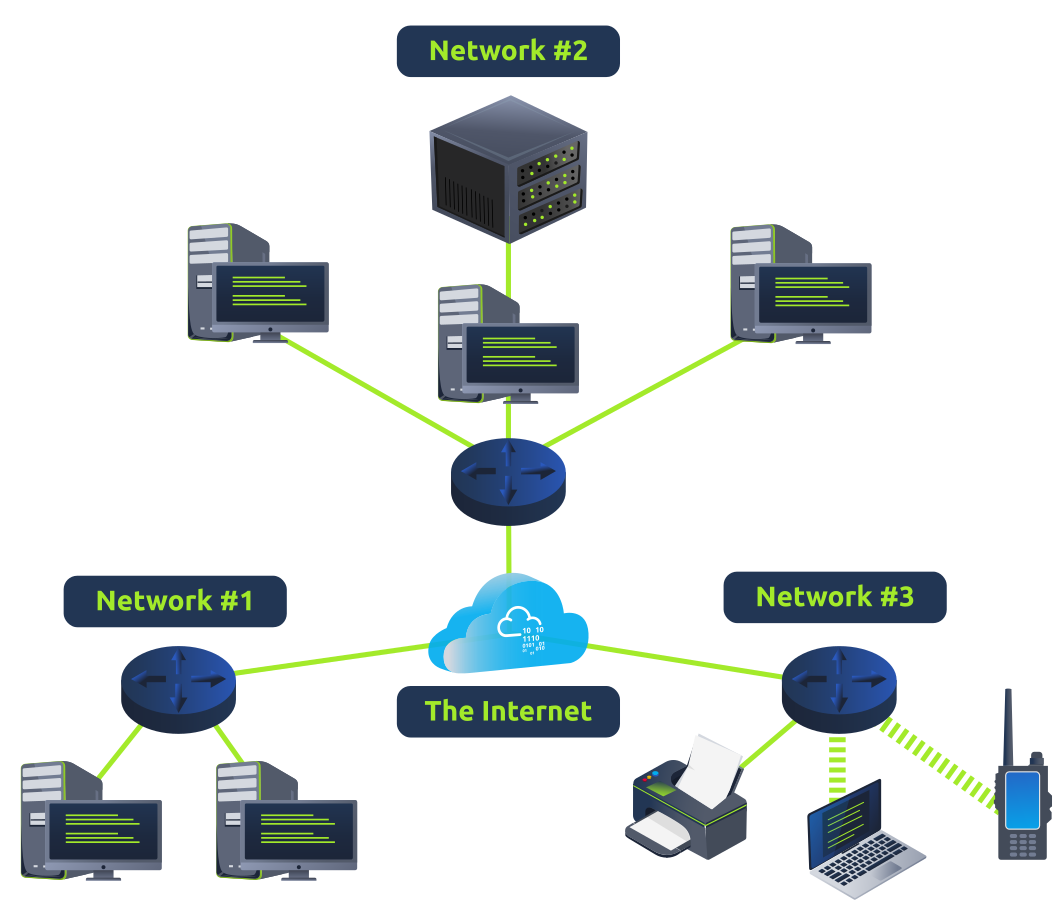
how can the Internet figure out how to deliver a packet from Network 1 to Network 2 or Network 3? Although this is an overly simplified diagram, we need some algorithm to figure out how to connect Network 1 to Network 2 and Network 3 and vice versa.
The mobile user can reach the web server; however, for this to happen, each router across the path needs to send the packets via the appropriate link. Obviously, there is more than one path, i.e., route, connecting the mobile user and the web server. We need a routing algorithm for the router to figure out which link to use.

Routing algorithms:
- OSPF (Open Shortest Path First): OSPF is a routing protocol that allows routers to share information about the network topology and calculate the most efficient paths for data transmission. It does this by having routers exchange updates about the state of their connected links and networks. This way, each router has a complete map of the network and can determine the best routes to reach any destination.
- EIGRP (Enhanced Interior Gateway Routing Protocol): EIGRP is a Cisco proprietary routing protocol that combines aspects of different routing algorithms. It allows routers to share information about the networks they can reach and the cost (like bandwidth or delay) associated with those routes. Routers then use this information to choose the most efficient paths for data transmission.
- BGP (Border Gateway Protocol): BGP is the primary routing protocol used on the Internet. It allows different networks (like those of Internet Service Providers) to exchange routing information and establish paths for data to travel between these networks. BGP helps ensure data can be routed efficiently across the Internet, even when traversing multiple networks.
- RIP (Routing Information Protocol): RIP is a simple routing protocol often used in small networks. Routers running RIP share information about the networks they can reach and the number of hops (routers) required to get there. As a result, each router builds a routing table based on this information, choosing the routes with the fewest hops to reach each destination.
Questions
Q: Which routing protocol discussed in this task is a Cisco proprietary protocol?
A: EIGRP
NAT
it was clear that the IPv4 address space would be depleted quickly. One solution to address depletion is Network Address Translation (NAT).
The idea behind NAT lies in using one public IP address to provide Internet access to many private IP addresses. In other words, if you are connecting a company with twenty computers, you can provide Internet access to all twenty computers by using a single public IP address instead of twenty public IP addresses. (Note: Technically speaking, the number of IP addresses is always expressed as a power of two. To be technically accurate, with NAT, you reserve two public IP addresses instead of thirty-two. Consequently, you would have saved thirty public IP addresses.)
Unlike routing, which is the natural way to route packets to the destination host, routers that support NAT must find a way to track ongoing connections. Consequently, NAT-supporting routers maintain a table translating network addresses between internal and external networks. Generally, the internal network would use a private IP address range, while the external network would use a public IP address.
In the diagram below, multiple devices access the Internet via a router that supports NAT. The router maintains a table that maps the internal IP address and port number with its external IP address and port number. For instance, the laptop might establish a connection with some web server. From the laptop perspective, the connection is initiated from its IP address 192.168.0.129 from TCP source port number 15401; however, the web server will see this same connection as being established from 212.3.4.5 and TCP port number 19273, as shown in the translation table. The router does this address translation seamlessly.

Questions
Q: In the network diagram above, what is the public IP that the phone will appear to use when accessing the Internet?
A: 212.3.4.5
Q: Assuming that the router has infinite processing power, approximately speaking, how many thousand simultaneous TCP connections can it maintain?
A: 65