Burp Suite: Extensions
The Extensions Interface
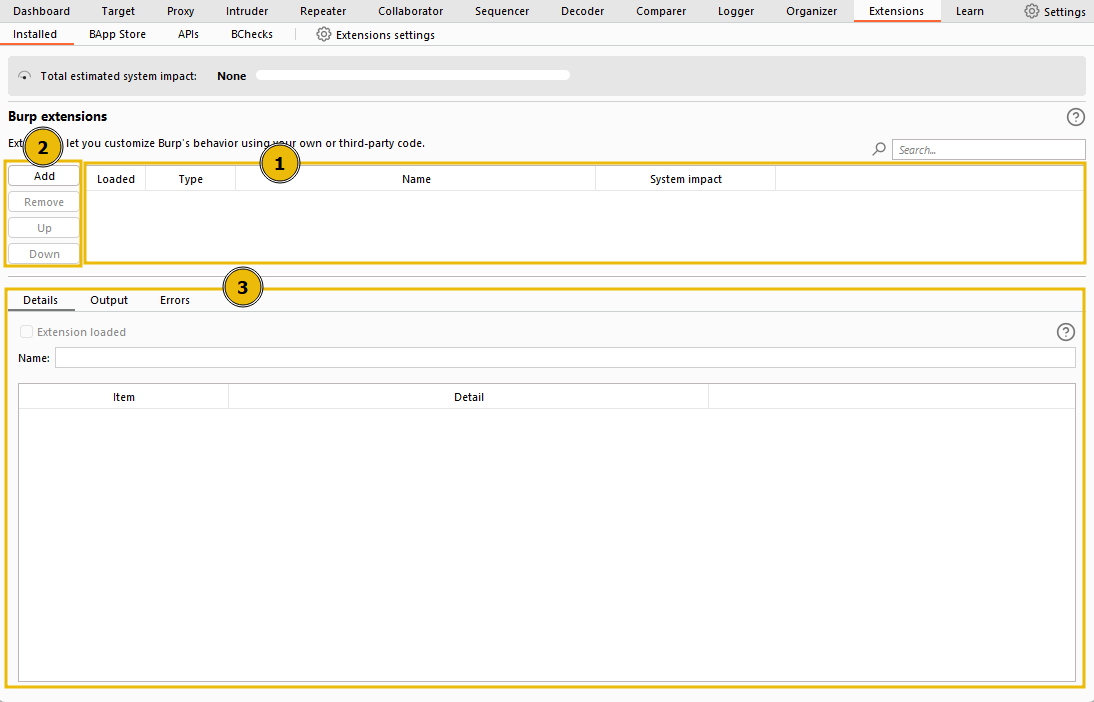
- Extensions List: The top box displays a list of the extensions that are currently installed in Burp for the current project. It allows you to activate or deactivate individual extensions.
- Managing Extensions: On the left side of the Extensions interface, there are options to manage extensions:
- Add: You can use this button to install new extensions from files on your disk. These files can be custom-coded modules or modules obtained from external sources that are not available in the official BApp store.
- Remove: This button allows you to uninstall selected extensions from
- Add: install new extensions from files on your disk. These files can be custom-coded modules or modules obtained from external sources that are not available in the official BApp store.
- Remove: uninstall selected extensions from Burp.
- Up/Down: These buttons control the order in which installed extensions are listed. The order determines the sequence in which extensions are invoked when processing traffic. Extensions are applied in descending order, starting from the top of the list and moving down. The order is essential, especially when dealing with extensions that modify requests, as some may conflict or interfere with others. - Details, Output, and Errors: Towards the bottom of the window, there are sections for the currently selected extension:
- Details: This section provides information about the selected extension, such as its name, version, and description.
- Output: Extensions can produce output during their execution, and this section displays any relevant output or results.
- Errors: If an extension encounters any errors during execution, they will be shown in this section. This can be useful for debugging and troubleshooting extension issues.
Questions
Q: Are extensions invoked in ascending (A) or descending (D) order?
A: D
The BApp Store
BApp Store (Burp App Store) allows us to easily discover and integrate official extensions seamlessly into the tool. Extensions can be written in various languages, with Java and Python being the most common choices. Java extensions integrate automatically with the Burp framework, while Python extensions require the Jython interpreter.
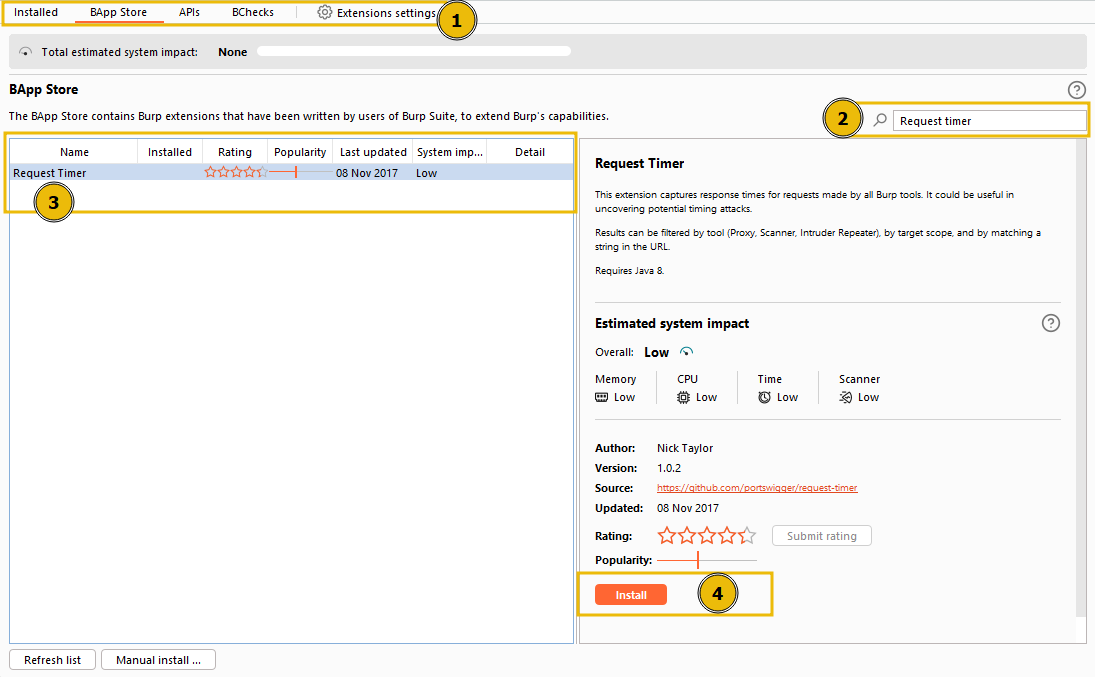
To get a feel for the BApp store and install a Java extension, let’s install the Request Timer (opens in new tab) extension, written by Nick Taylor. The Request Timer extension enables us to log the time it takes for each request to receive a response. This functionality is particularly useful for identifying and exploiting time-based vulnerabilities. For instance, if a login form takes an extra second to process requests with valid usernames compared to invalid ones, we can use the time differences to determine which usernames are valid.
Follow these steps to install the Request Timer extension from the BApp store:
- Switch to the BApp Store sub-tab in Burp.
- Use the search function to find Request Timer. There should only be one result for this extension.
- Click on the returned extension to view more details.
- Click the Install button to install the Request Timer extension.
Jython
To use Python modules in Burp, we need to include the Jython Interpreter JAR file, which is a Java implementation of Python. The Jython Interpreter enables us to run Python-based extensions within Burp Suite.
Follow these steps to integrate Jython into Burp:
-
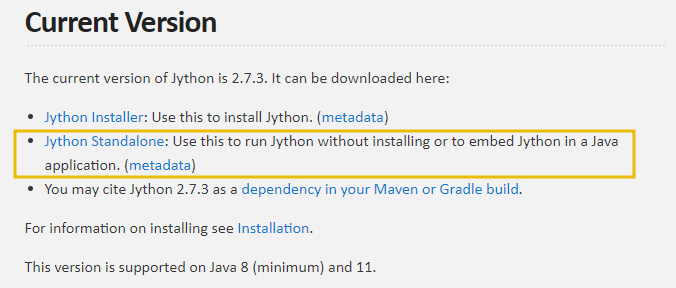
Download Jython JAR: Visit the Jython website (opens in new tab) and download the standalone JAR archive. Look for the Jython Standalone option. Save the JAR file to a location on your disk.
- Configure Jython in Burp: Open Burp and switch to the Extensions module. Then, go to the Extensions settings sub-tab.
- Python Environment: Scroll down to the “Python environment” section.
-
Set Jython JAR Location: In the “Location of Jython standalone JAR file” field, set the path to the downloaded Jython JAR file.
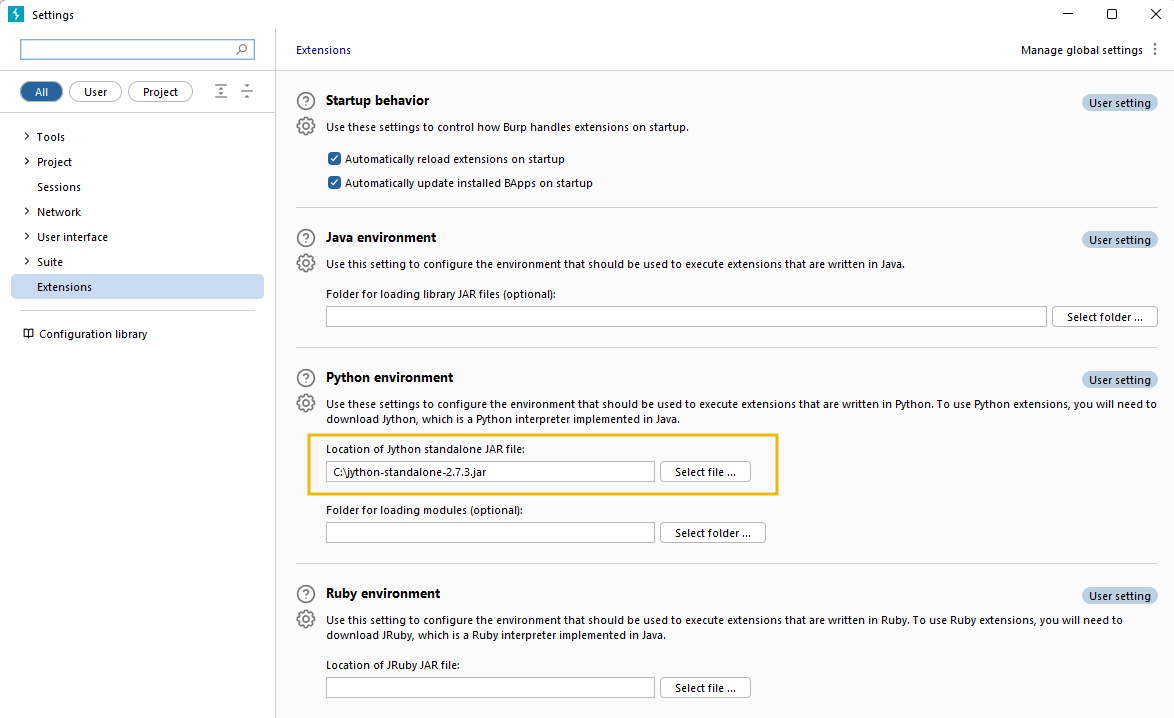
Once you have completed these steps, Jython will be integrated with Burp, allowing you to use Python modules in the tool. This integration significantly increases the number of available extensions and enhances your capabilities in performing various security testing and web application assessment tasks.
The Burp Suite API
In the Extensions module, you have access to a wide range of API endpoints that allow you to create and integrate your modules with Burp. These APIs expose various functionalities, enabling you to extend the capabilities of Burp to suit your specific needs.
To view the available API endpoints, navigate to the APIs sub-tab within the Extensions module. Each item listed in the left-hand panel represents a different API endpoint that can be accessed from within extensions.
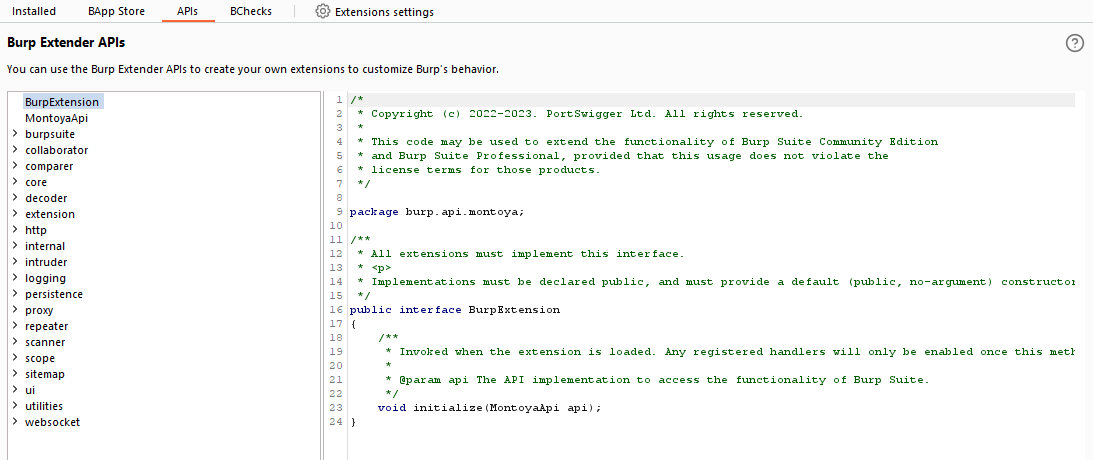
The Extensions APIs give developers significant power and flexibility when writing custom extensions. You can use these APIs to seamlessly interact with Burp’s existing functionality and tailor your extensions to perform specific tasks.
Burp supports multiple languages for writing extensions, such as:
- Java (Natively): You can directly use Java to write extensions for Burp, taking advantage of the powerful APIs available.
- Python (via Jython): If you prefer Python as your programming language, you can utilize Jython, which is a Java implementation of Python to create Burp extensions.
- Ruby (via JRuby): Developers familiar with Ruby can leverage JRuby, a Java implementation of Ruby, to build Burp extensions.
It’s important to note that coding your extensions for Burp can be a complex task, and it goes beyond the scope of this module. However, suppose you are interested in exploring this area further and creating custom extensions. In that case, PortSwigger provides a comprehensive reference that is an excellent resource for developing Burp extensions.
To learn more about Burp extension development and to access the detailed reference, you can visit PortSwigger’s official documentation (opens in new tab). This resource will provide the information and guidance needed to create powerful and customized extensions that enhance your experience with Burp.