Active Directory Basics
Windows Domains
Picture yourself administering a small business network with only five computers and five employees. In such a tiny network, you will probably be able to configure each computer separately without a problem. You will manually log into each computer, create users for whoever will use them, and make specific configurations for each employee’s accounts. If a user’s computer stops working, you will probably go to their place and fix the computer on-site.
While this sounds like a very relaxed lifestyle, let’s suppose your business suddenly grows and now has 157 computers and 320 different users located across four different offices. Would you still be able to manage each computer as a separate entity, manually configure policies for each of the users across the network and provide on-site support for everyone? The answer is most likely no.
To overcome these limitations, we can use a Windows domain. Simply put, a Windows domain is a group of users and computers under the administration of a given business. The main idea behind a domain is to centralise the administration of common components of a Windows computer network in a single repository called Active Directory (AD). The server that runs the Active Directory services is known as a Domain Controller (DC).
The main advantages of having a configured Windows domain are:
- Centralised identity management: All users across the network can be configured from Active Directory with minimum effort.
- Managing security policies: You can configure security policies directly from Active Directory and apply them to users and computers across the network as needed.
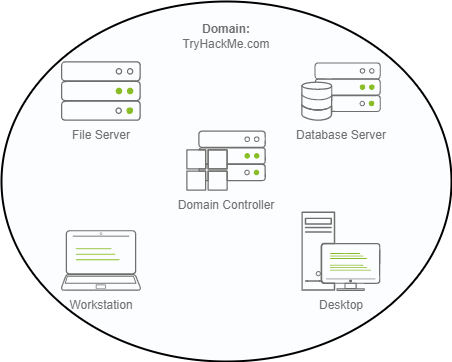
In school/university networks, you will often be provided with a username and password that you can use on any of the computers available on campus. Your credentials are valid for all machines because whenever you input them on a machine, it will forward the authentication process back to the Active Directory, where your credentials will be checked. Thanks to Active Directory, your credentials don’t need to exist in each machine and are available throughout the network.
Active Directory is also the component that allows your school/university to restrict you from accessing the control panel on your school/university machines. Policies will usually be deployed throughout the network so that you don’t have administrative privileges over those computers.
Questions
In a Windows domain, credentials are stored in a centralised repository called…
A: Active Directory
The server in charge of running the Active Directory services is called…
A: Domain Controller
Active Directory
Active Directory Domain Service (AD DS) = a service that acts as a catalogue that holds the information of all of the “objects” that exist on your network e.g users, groups, machines, printers, shares etc.
Users
They are Security principals, meaning they can be authenticated by the domain and assigned privileges over resources like files or printers.
Security principal = object that can act upon resources in the network
Users can represent people or services (eg. IIS or MSSQL; service users vs normal users)
Machines
for every computer that joins the Active Directory domain, a machine object will be created. Machines are also considered “security principals” and are assigned an account just as any regular user. This account has somewhat limited rights within the domain itself.
The machine accounts themselves are local administrators on the assigned computer, they are generally not supposed to be accessed by anyone except the computer itself, but as with any other account, if you have the password, you can use it to log in.
Machine Account passwords are automatically rotated out and are generally comprised of 120 random characters.
Machine accounts follow a specific naming scheme: <computer_name>$
Security Groups
you can define user groups to assign access rights to files or other resources to entire groups instead of single users. This allows for better manageability as you can add users to an existing group, and they will automatically inherit all of the group’s privileges
Security groups are also considered security principals
Groups can have both users and machines as members. If needed, groups can include other groups as well.
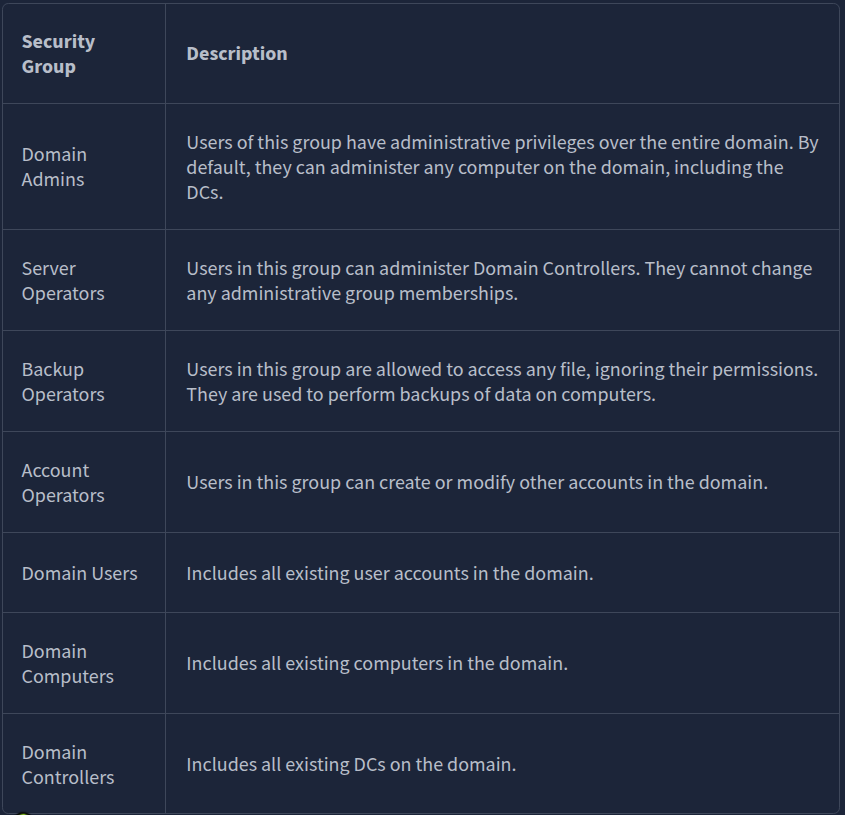
Several groups are created by default in a domain that can be used to grant specific privileges to users. As an example, here are some of the most important groups in a domain:
AD Users and Computers
To configure users, groups or machines in Active Directory, we need to log in to the Domain Controller and run “Active Directory Users and Computers” from the start menu:
This will open up a window where you can see the hierarchy of users, computers and groups that exist in the domain. These objects are organised in Organizational Units (OUs) which are container objects that allow you to classify users and machines. OUs are mainly used to define sets of users with similar policing requirements. The people in the Sales department of your organisation are likely to have a different set of policies applied than the people in IT, for example. Keep in mind that a user can only be a part of a single OU at a time.
Checking our machine, we can see that there is already an OU called THM with five child OUs for the IT, Management, Marketing, R&D, and Sales departments. It is very typical to see the OUs mimic the business’ structure, as it allows for efficiently deploying baseline policies that apply to entire departments. Remember that while this would be the expected model most of the time, you can define OUs arbitrarily.
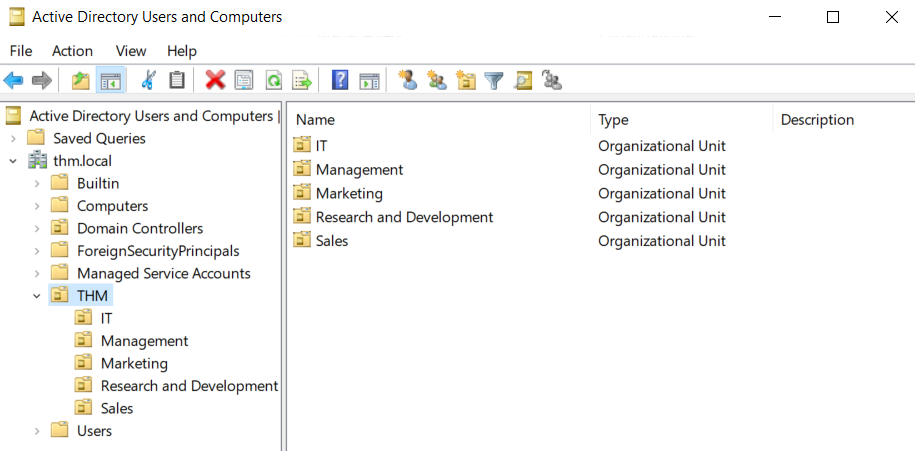
If you open any OUs, you can see the users they contain and perform simple tasks like creating, deleting or modifying them as needed. You can also reset passwords if needed (pretty useful for the helpdesk).
You probably noticed already that there are other default containers apart from the THM OU. These containers are created by Windows automatically and contain the following:
- Builtin: Contains default groups available to any Windows host.
- Computers: Any machine joining the network will be put here by default. You can move them if needed.
- Domain Controllers: Default OU that contains the DCs in your network.
- Users: Default users and groups that apply to a domain-wide context.
- Managed Service Accounts: Holds accounts used by services in your Windows domain.
Security Groups vs OUs
You are probably wondering why we have both groups and OUs. While both are used to classify users and computers, their purposes are entirely different:
- OUs are handy for applying policies to users and computers, which include specific configurations that pertain to sets of users depending on their particular role in the enterprise. Remember, a user can only be a member of a single OU at a time, as it wouldn’t make sense to try to apply two different sets of policies to a single user.
- Security Groups, on the other hand, are used to grant permissions over resources. For example, you will use groups if you want to allow some users to access a shared folder or network printer. A user can be a part of many groups, which is needed to grant access to multiple resources.
Questions
Which group normally administrates all computers and resources in a domain?
A: Domain Admins
What would be the name of the machine account associated with a machine named TOM-PC?
A: TOM-PC$
Suppose our company creates a new department for Quality Assurance. What type of containers should we use to group all Quality Assurance users so that policies can be applied consistently to them?
A: Organizational Units
Managing Users in AD
In order to match the given organizational chart, we need to delete the Research and Development OU and then remove two users from the Sales OU.
One of the nice things you can do in AD is to give specific users some control over some OUs. This process is known as delegation and allows you to grant users specific privileges to perform advanced tasks on OUs without needing a Domain Administrator to step in.
One of the most common use cases for this is granting IT support the privileges to reset other low-privilege users’ passwords. According to our organisational chart, Phillip is in charge of IT support, so we’d probably want to delegate the control of resetting passwords over the Sales, Marketing and Management OUs to him.
Questions
What was the flag found on Sophie’s desktop?
Login as Phillip using RDP and reset Sophie’s passwd using the following command in powershell: Set-ADAccountPassword sophie -Reset -NewPassword (Read-Host -AsSecureString -Prompt 'New Password') -Verbose
Then use this password to login as sophie.
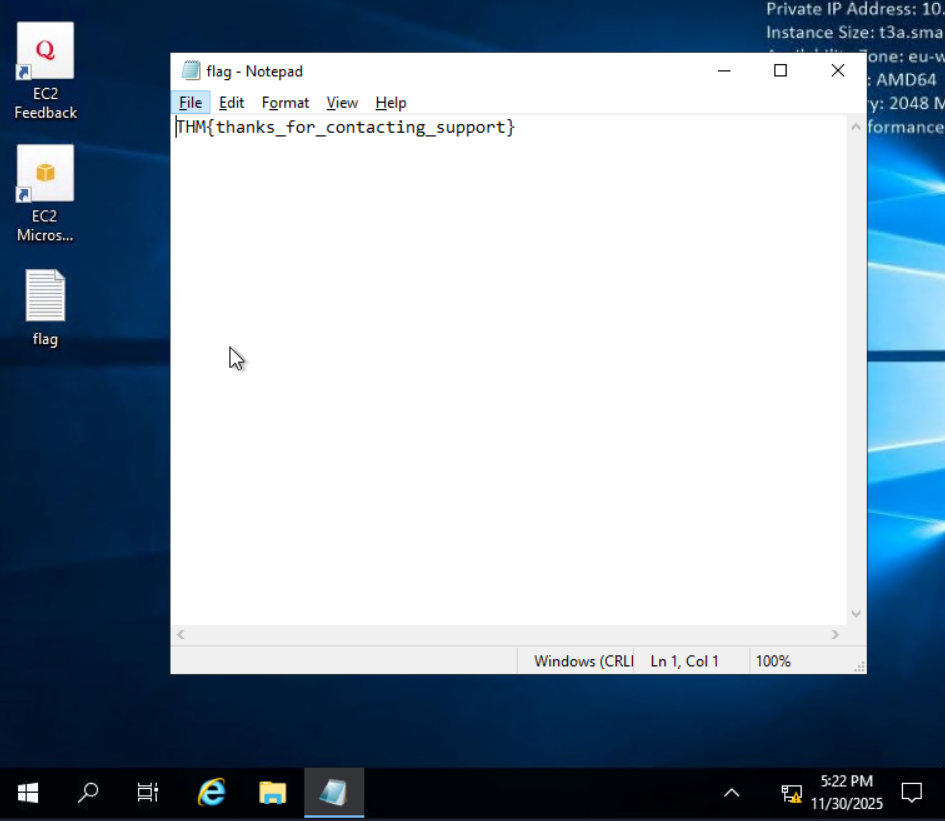
A: THM{thanks_for_contacting_support}
The process of granting privileges to a user over some OU or other AD Object is called…
A: delegation
Managing Computers in AD
By default, all the machines that join a domain (except for the DCs) will be put in the container called “Computers”. If we check our DC, we will see that some devices are already there:
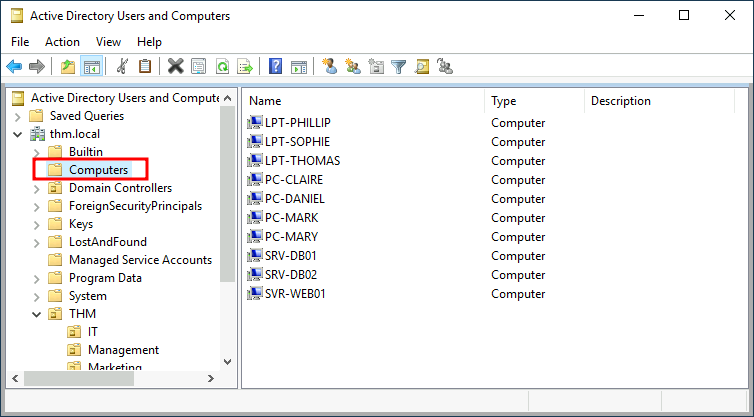
Having all of our devices there is not the best idea since it’s very likely that you want different policies for your servers and the machines that regular users use on a daily basis.
While there is no golden rule on how to organise your machines, an excellent starting point is segregating devices according to their use. In general, you’d expect to see devices divided into at least the three following categories:
1. Workstations
Workstations are one of the most common devices within an Active Directory domain. Each user in the domain will likely be logging into a workstation. This is the device they will use to do their work or normal browsing activities. These devices should never have a privileged user signed into them.
2. Servers
Servers are the second most common device within an Active Directory domain. Servers are generally used to provide services to users or other servers.
3. Domain Controllers
Domain Controllers are the third most common device within an Active Directory domain. Domain Controllers allow you to manage the Active Directory Domain. These devices are often deemed the most sensitive devices within the network as they contain hashed passwords for all user accounts within the environment.
Questions
After organising the available computers, how many ended up in the Workstations OU?
From all the machines, all of them except the two SRVs and the SVR will go into the Workstation OU.
A: 7
Is it recommendable to create separate OUs for Servers and Workstations? (yay/nay)
A: yay
Group Policies
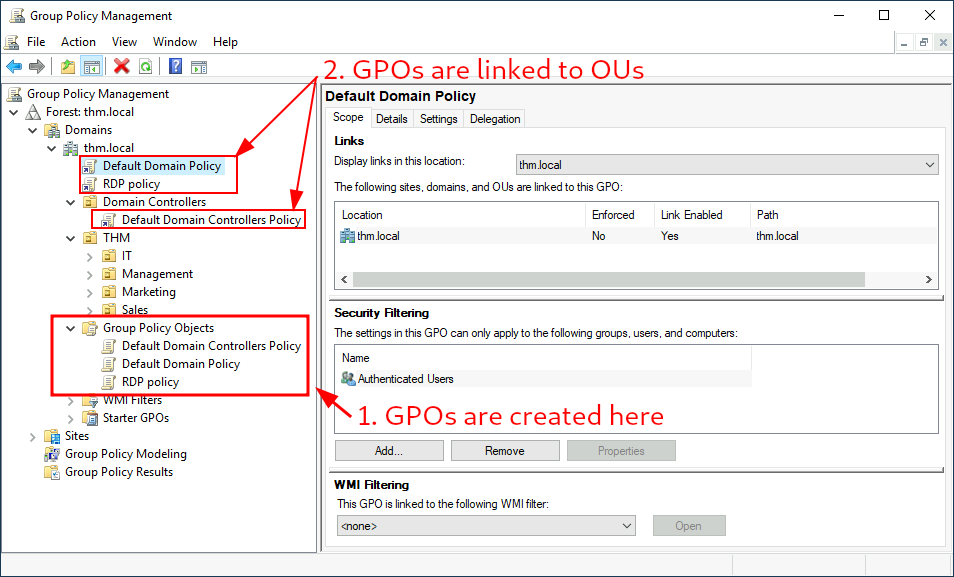
So far, we have organised users and computers in OUs just for the sake of it, but the main idea behind this is to be able to deploy different policies for each OU individually. That way, we can push different configurations and security baselines to users depending on their department.
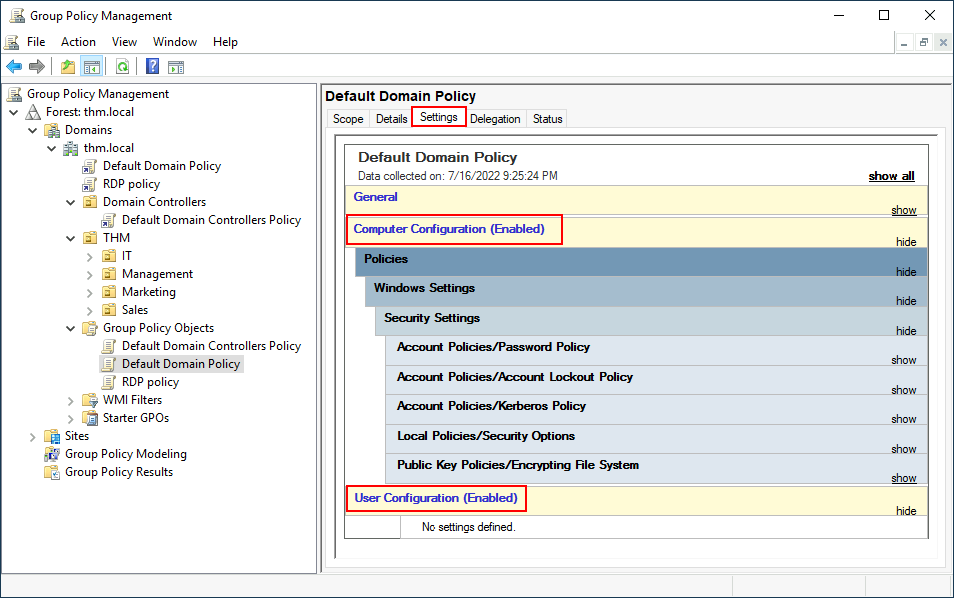
Windows manages such policies through Group Policy Objects (GPO). GPOs are simply a collection of settings that can be applied to OUs. GPOs can contain policies aimed at either users or computers, allowing you to set a baseline on specific machines and identities.
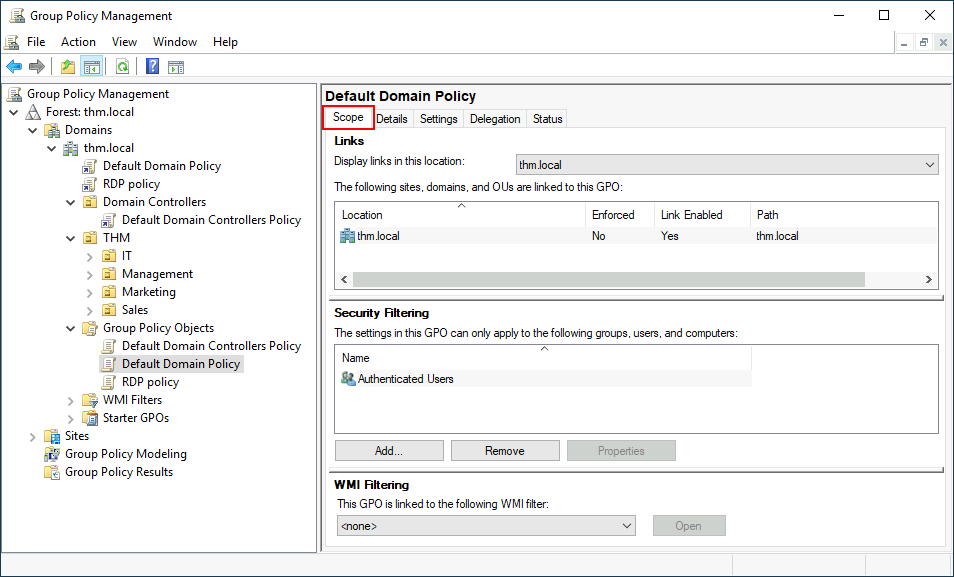
To configure GPOs, you can use the Group Policy Management tool.
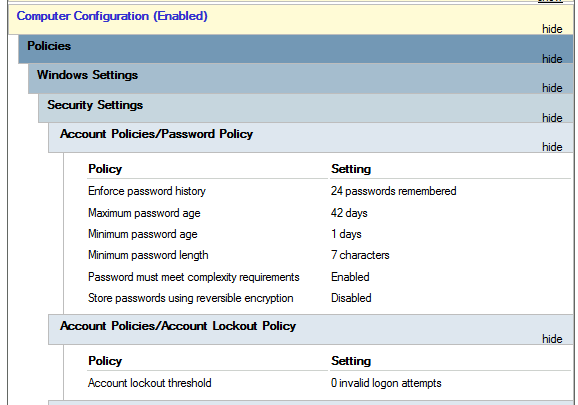
GPO distribution
GPOs are distributed to the network via a network share called SYSVOL, which is stored in the DC. All users in a domain should typically have access to this share over the network to sync their GPOs periodically. The SYSVOL share points by default to the C:\Windows\SYSVOL\sysvol\ directory on each of the DCs in our network.
Questions
What is the name of the network share used to distribute GPOs to domain machines?
A: sysvol
Can a GPO be used to apply settings to users and computers? (yay/nay)
A: yay
Authentication Methods
When using Windows domains, all credentials are stored in the Domain Controllers. Whenever a user tries to authenticate to a service using domain credentials, the service will need to ask the Domain Controller to verify if they are correct. Two protocols can be used for network authentication in windows domains:
- Kerberos: Used by any recent version of Windows. This is the default protocol in any recent domain.
- NetNTLM: Legacy authentication protocol kept for compatibility purposes.
While NetNTLM should be considered obsolete, most networks will have both protocols enabled.
Kerberos Authentication
Users who log into a service using Kerberos will be assigned tickets. Think of tickets as proof of a previous authentication. Users with tickets can present them to a service to demonstrate they have already authenticated into the network before and are therefore enabled to use it.
When Kerberos is used for authentication, the following process happens:
-
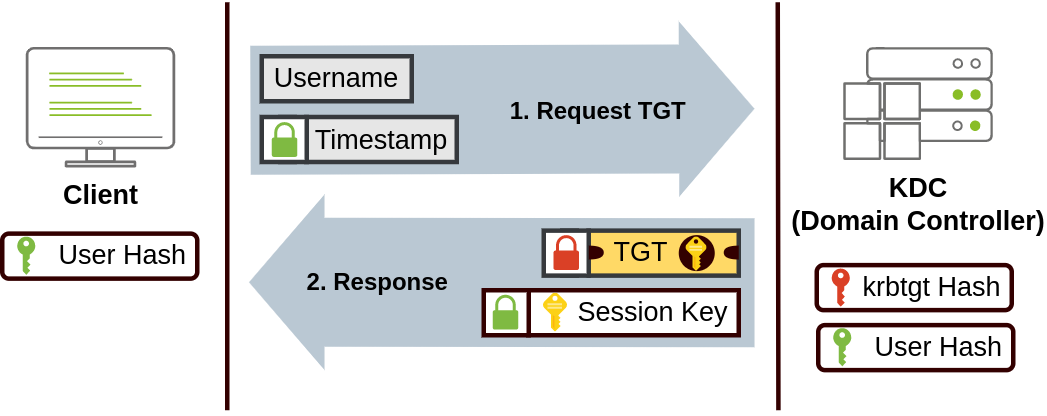
The user sends their username and a timestamp encrypted using a key derived from their password to the Key Distribution Center (KDC), a service usually installed on the Domain Controller in charge of creating Kerberos tickets on the network.
The KDC will create and send back a Ticket Granting Ticket (TGT), which will allow the user to request additional tickets to access specific services. The need for a ticket to get more tickets may sound a bit weird, but it allows users to request service tickets without passing their credentials every time they want to connect to a service. Along with the TGT, a Session Key is given to the user, which they will need to generate the following requests. Notice the TGT is encrypted using the krbtgt account’s password hash, and therefore the user can’t access its contents. It is essential to know that the encrypted TGT includes a copy of the Session Key as part of its contents, and the KDC has no need to store the Session Key as it can recover a copy by decrypting the TGT if needed.
-
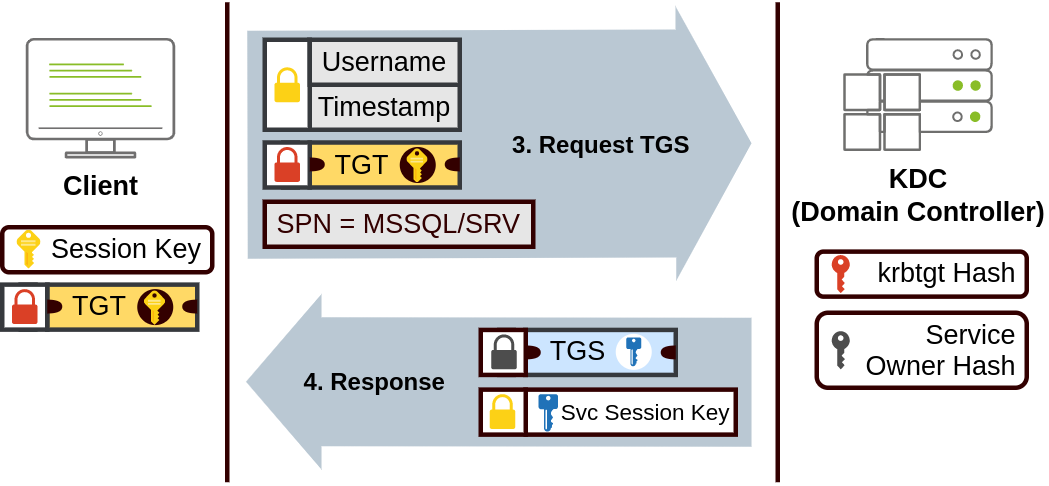
When a user wants to connect to a service on the network like a share, website or database, they will use their TGT to ask the KDC for a Ticket Granting Service (TGS). TGS are tickets that allow connection only to the specific service they were created for. To request a TGS, the user will send their username and a timestamp encrypted using the Session Key, along with the TGT and a Service Principal Name (SPN), which indicates the service and server name we intend to access.
As a result, the KDC will send us a TGS along with a Service Session Key, which we will need to authenticate to the service we want to access. The TGS is encrypted using a key derived from the Service Owner Hash. The Service Owner is the user or machine account that the service runs under. The TGS contains a copy of the Service Session Key on its encrypted contents so that the Service Owner can access it by decrypting the TGS.
- The TGS can then be sent to the desired service to authenticate and establish a connection. The service will use its configured account’s password hash to decrypt the TGS and validate the Service Session Key.
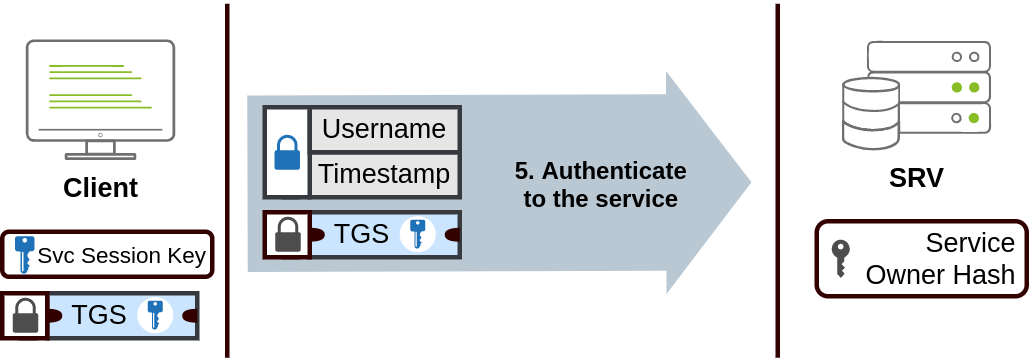
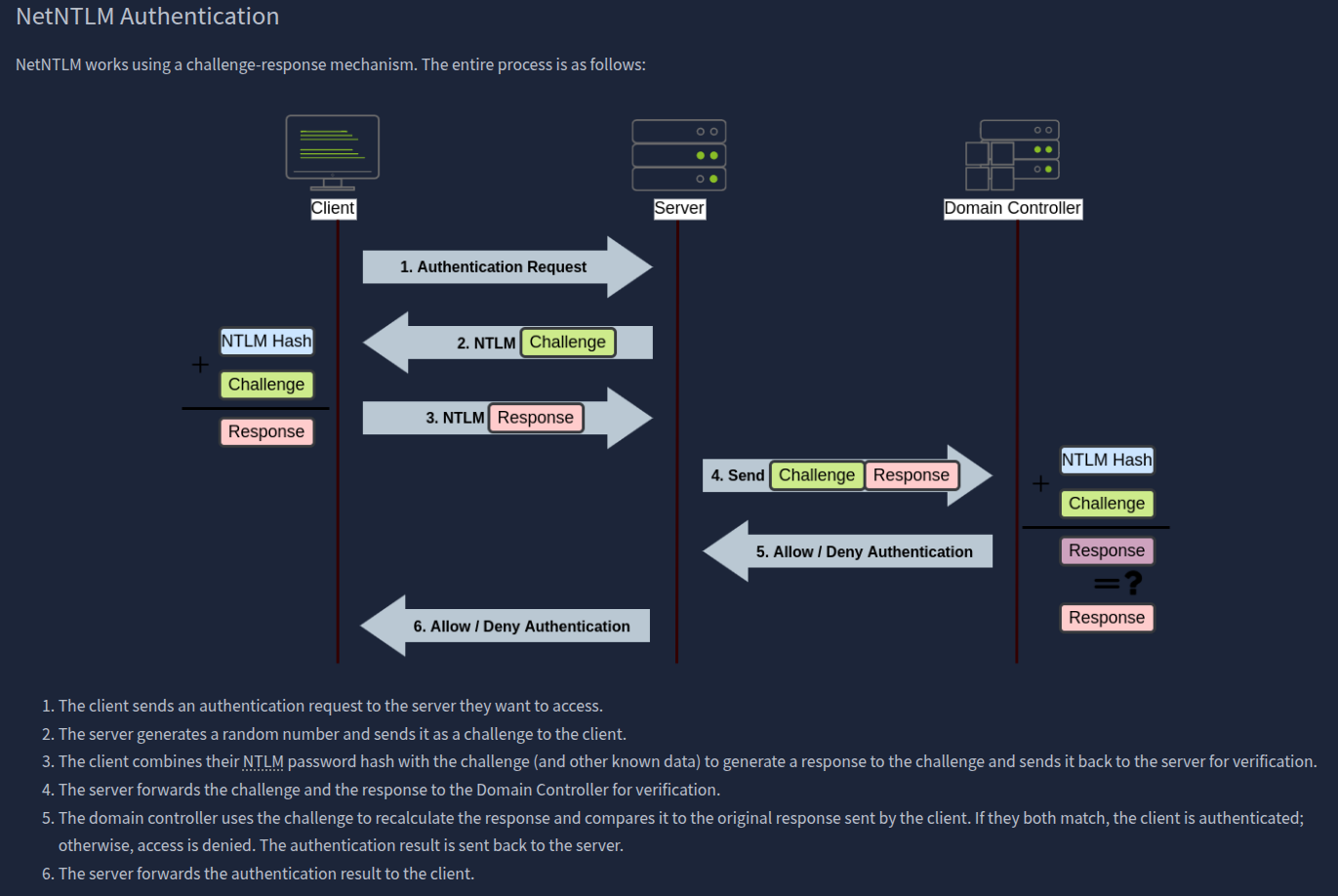
Note that the user’s password (or hash) is never transmitted through the network for security.
Note: The described process applies when using a domain account. If a local account is used, the server can verify the response to the challenge itself without requiring interaction with the domain controller since it has the password hash stored locally on its SAM.
Questions
Will a current version of Windows use NetNTLM as the preferred authentication protocol by default? (yay/nay)
A: nay
When referring to Kerberos, what type of ticket allows us to request further tickets known as TGS?
A: Ticket Granting Ticket
When using NetNTLM, is a user’s password transmitted over the network at any point? (yay/nay)
A: nay
Trees, Forests and Trusts
As companies grow, so do their networks. Having a single domain for a company is good enough to start, but in time some additional needs might push you into having more than one.
Imagine, for example, that suddenly your company expands to a new country. The new country has different laws and regulations that require you to update your GPOs to comply. In addition, you now have IT people in both countries, and each IT team needs to manage the resources that correspond to each country without interfering with the other team. While you could create a complex OU structure and use delegations to achieve this, having a huge AD structure might be hard to manage and prone to human errors.
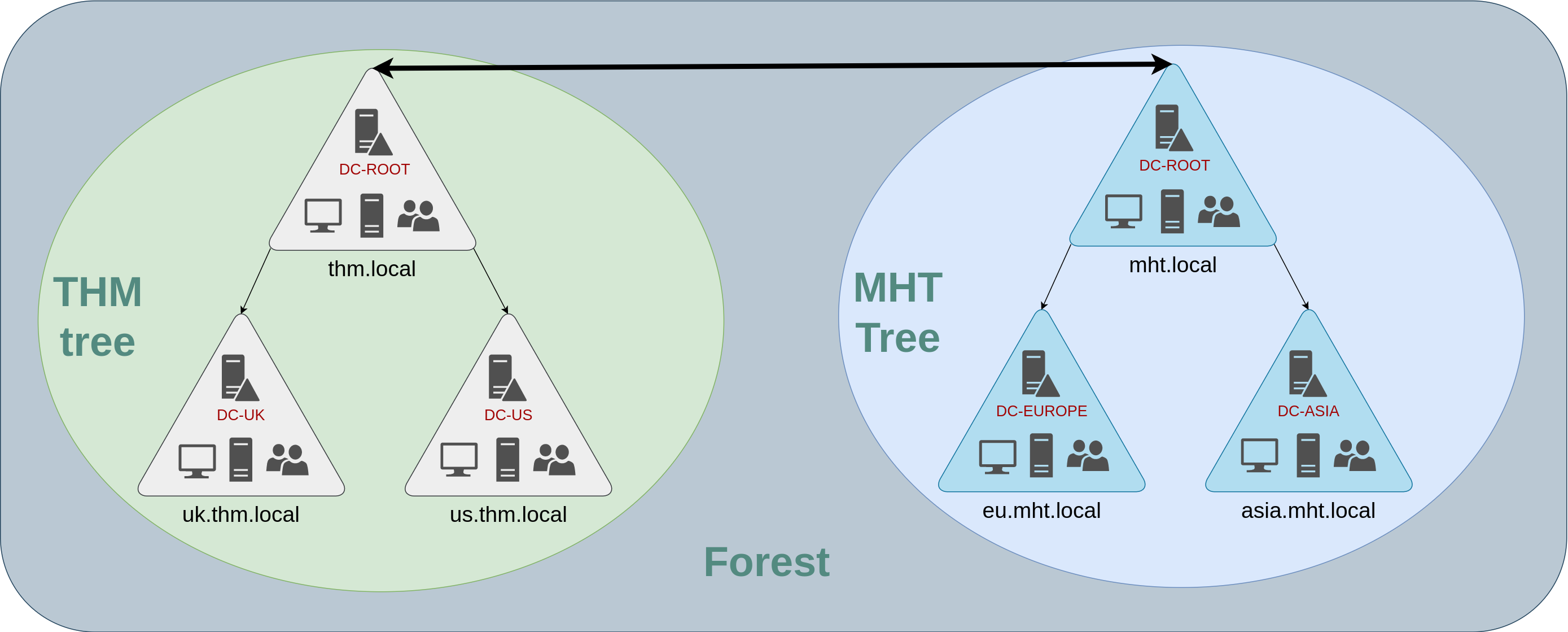
Luckily for us, Active Directory supports integrating multiple domains so that you can partition your network into units that can be managed independently. If you have two domains that share the same namespace (thm.local in our example), those domains can be joined into a Tree.
If our thm.local domain was split into two subdomains for UK and US branches, you could build a tree with a root domain of thm.local and two subdomains called uk.thm.local and us.thm.local, each with its AD, computers and users:
The IT people from the UK will have their own DC that manages the UK resources only. For example, a UK user would not be able to manage US users. In that way, the Domain Administrators of each branch will have complete control over their respective DCs, but not other branches’ DCs. Policies can also be configured independently for each domain in the tree.
A new security group needs to be introduced when talking about trees and forests. The Enterprise Admins group will grant a user administrative privileges over all of an enterprise’s domains. Each domain would still have its Domain Admins with administrator privileges over their single domains and the Enterprise Admins who can control everything in the enterprise.
Forests
The domains you manage can also be configured in different namespaces. Suppose your company continues growing and eventually acquires another company called MHT Inc. When both companies merge, you will probably have different domain trees for each company, each managed by its own IT department. The union of several trees with different namespaces into the same network is known as a forest.
Trust Relationships
Having multiple domains organised in trees and forest allows you to have a nice compartmentalised network in terms of management and resources. But at a certain point, a user at THM UK might need to access a shared file in one of MHT ASIA servers. For this to happen, domains arranged in trees and forests are joined together by trust relationships.
In simple terms, having a trust relationship between domains allows you to authorise a user from domain THM UK to access resources from domain MHT EU.
The simplest trust relationship that can be established is a one-way trust relationship. In a one-way trust, if Domain AAA trusts Domain BBB, this means that a user on BBB can be authorised to access resources on AAA.
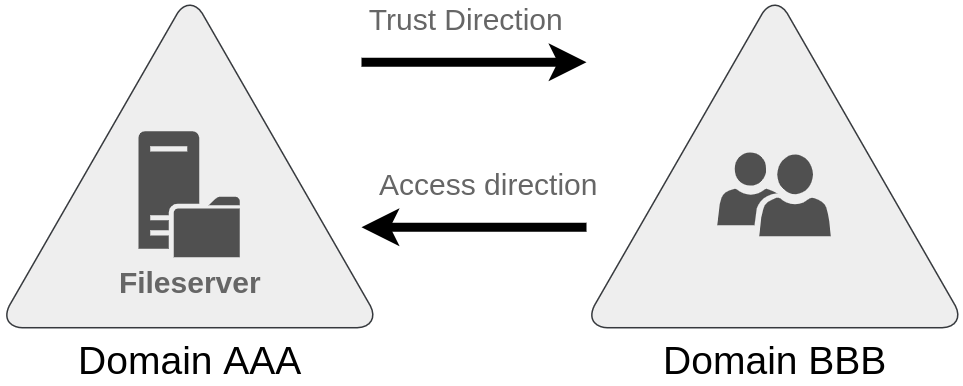
Two-way trust relationships can also be made to allow both domains to mutually authorise users from the other. By default, joining several domains under a tree or a forest will form a two-way trust relationship.
It is important to note that having a trust relationship between domains doesn’t automatically grant access to all resources on other domains. Once a trust relationship is established, you have the chance to authorise users across different domains, but it’s up to you what is actually authorised or not.
Questions
What is a group of Windows domains that share the same namespace called?
A: Tree
What should be configured between two domains for a user in Domain A to access a resource in Domain B?
A: trust relationship